Boost Your Frontend Workflow with Chrome AI DevTools (2026)
Frontend development can be a rollercoaster—misaligned layouts, sneaky JavaScript errors, or unwanted scrollbars ruining your design. Debugging these issues often feels like solving a puzzle with missing pieces. But Chrome DevTools' AI assistance is here to save the day! This AI-powered feature, built into Chrome, acts like a mentor, offering smart fixes for CSS, JavaScript, and more. In this blog, I'll walk you through fixing an overflow bug step by step using Chrome's built-in AI assistance.
Why Use Chrome's AI Assistance for Debugging?
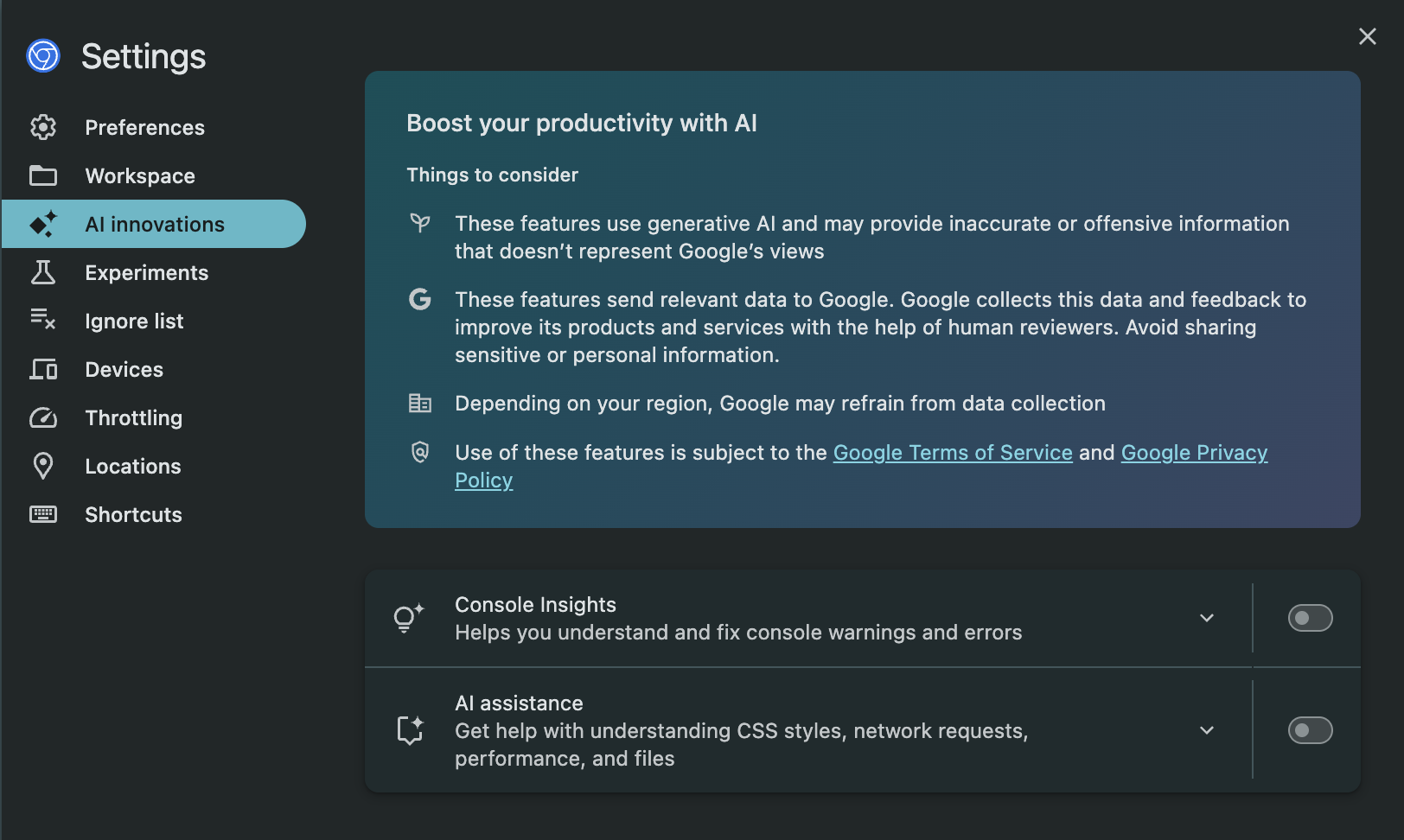
As of May 2025, Chrome's AI assistance in DevTools is a game-changer for frontend developers. It's a chat-like tool that analyzes your webpage and suggests solutions for styling issues, console errors, and performance hiccups. For this guide, we'll tackle an overflowing element causing unwanted scrollbars—a classic frontend headache—using the Cinemai DevTools Overflow Demo.
Prerequisites
Before we start, ensure you have:
- Latest Chrome Browser: Update via Menu > Help > About Google Chrome
- Google Account: Sign in (must be 18+ and in a supported region)
- Sample Webpage: We'll use the Cinemai DevTools Overflow Demo
- Basic Web Knowledge: A little HTML/CSS know-how helps
Step-by-Step Guide to Debug with AI Assistance
Step 1: Open Chrome DevTools
Navigate to the Cinemai DevTools Overflow Demo, where a scuba diver image triggers a pesky horizontal scrollbar.
- Right-click on the page and select Inspect, or press F12 (or Ctrl+Shift+I on Windows, Cmd+Option+I on Mac)
- This launches DevTools, your debugging command center
Step 2: Enable AI Assistance
Unlock AI assistance to debug smarter:
- In DevTools, click the Settings gear icon (top-right) or press F1
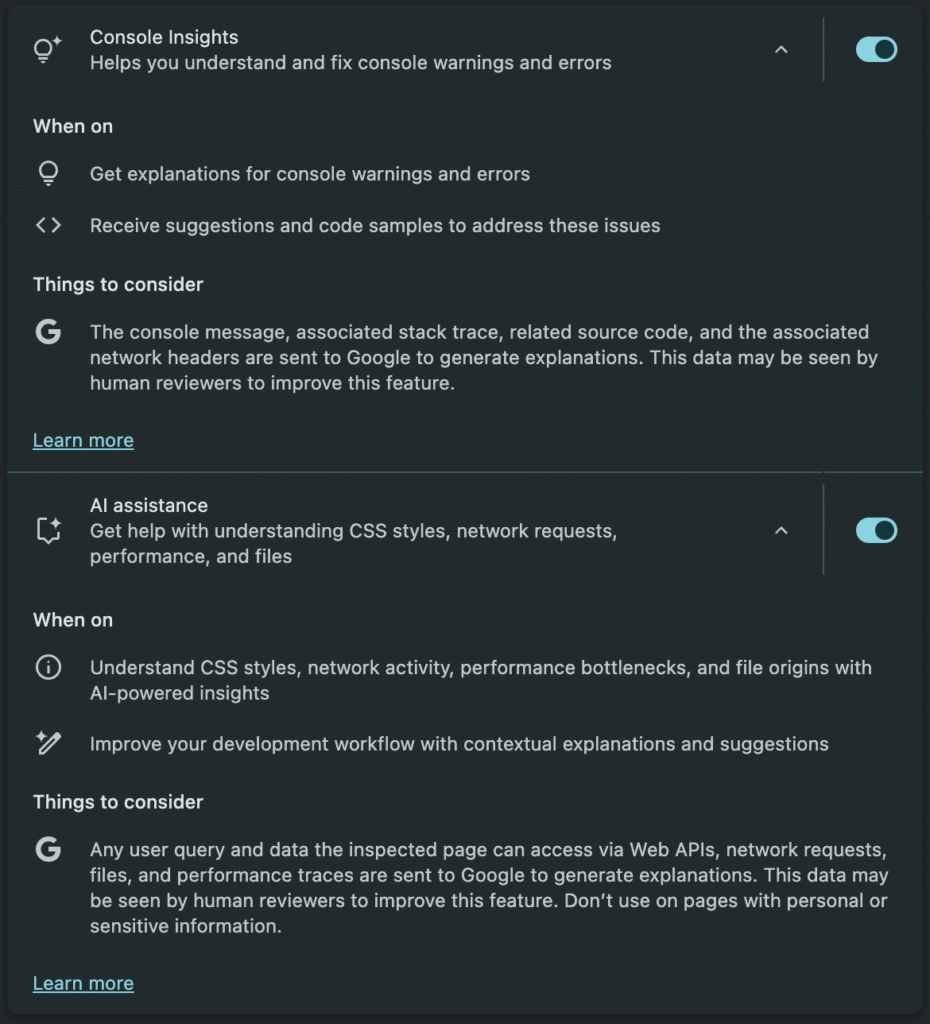
- Go to AI Assistance and toggle it on
- Sign in with your Google account and agree to the Terms of Service if prompted
- Look for the Ask AI button in the DevTools toolbar
Step 3: Identify the Issue
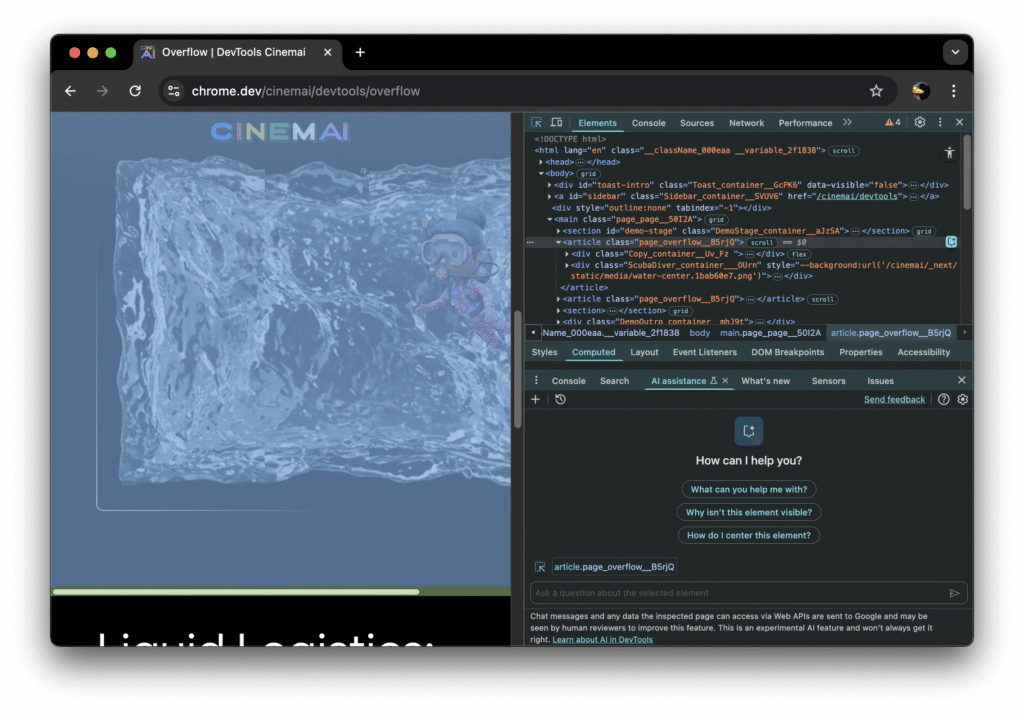
On the demo page, the scrollbar is caused by the scuba diver image overflowing its container.
- In DevTools, go to the Elements tab
- Select the image element (e.g., the div with a class like page_overflow__B5rjQ)
- Check the Styles pane to pinpoint the issue
Step 4: Ask AI for a Fix
Let AI assistance work its magic:
- Click the Ask AI button to open the chat interface
- Type:
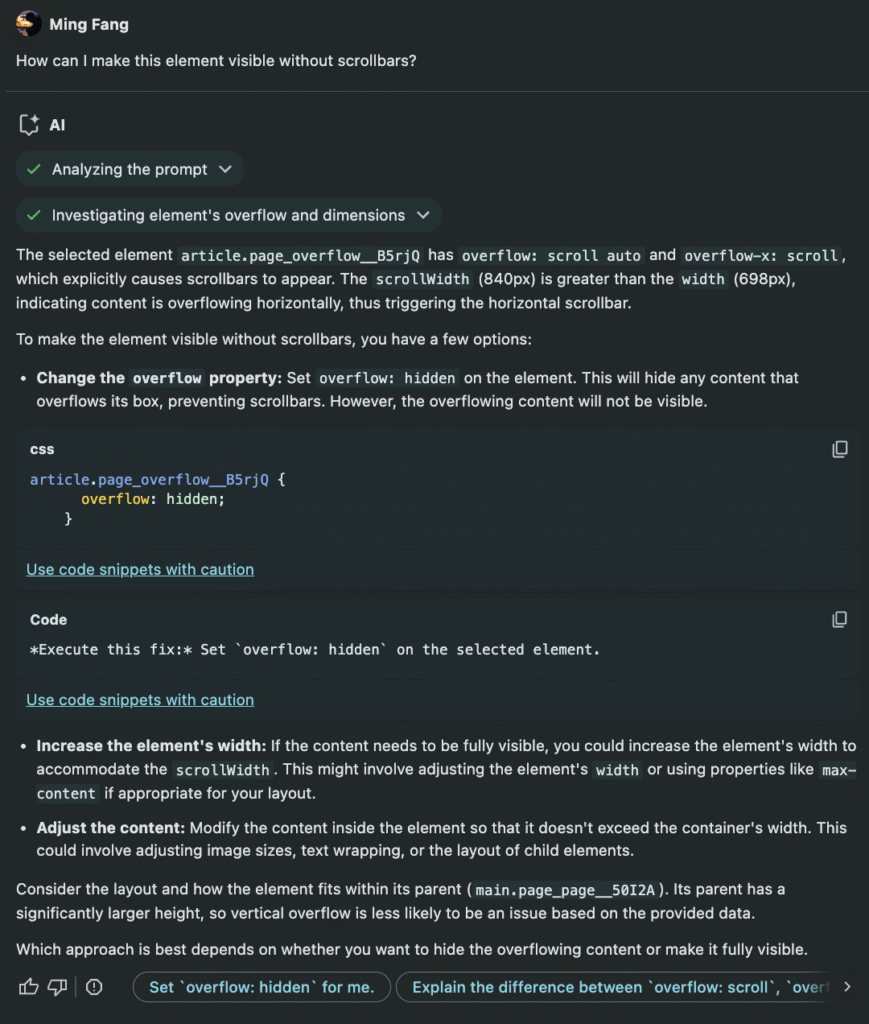
How can I make this element visible without scrollbars?
Example AI response:
To make the element visible without scrollbars, you have a few options:

Change the overflow property: Set overflow: hidden on the element. This will hide any content that overflows its box, preventing scrollbars.

Suggested CSS:
article.page_overflow__B5rjQ {
  overflow: hidden;
}
Step 5: Apply the Fix
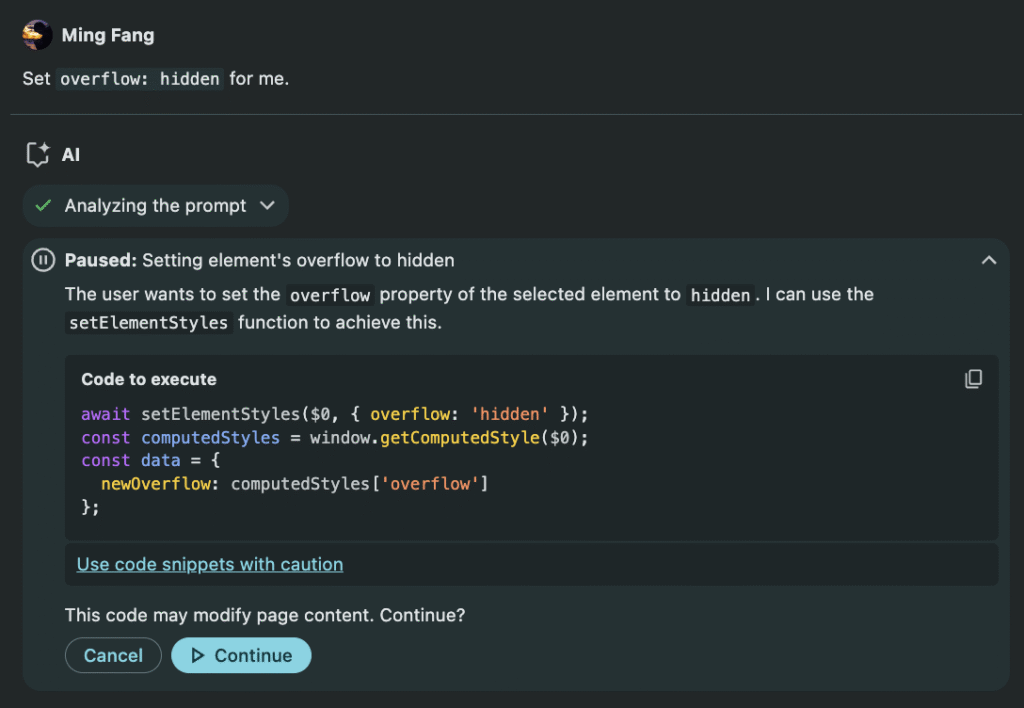
Simply click "Set overflow:hidden for me" and click "Continue"—it will fix that simple issue for you.
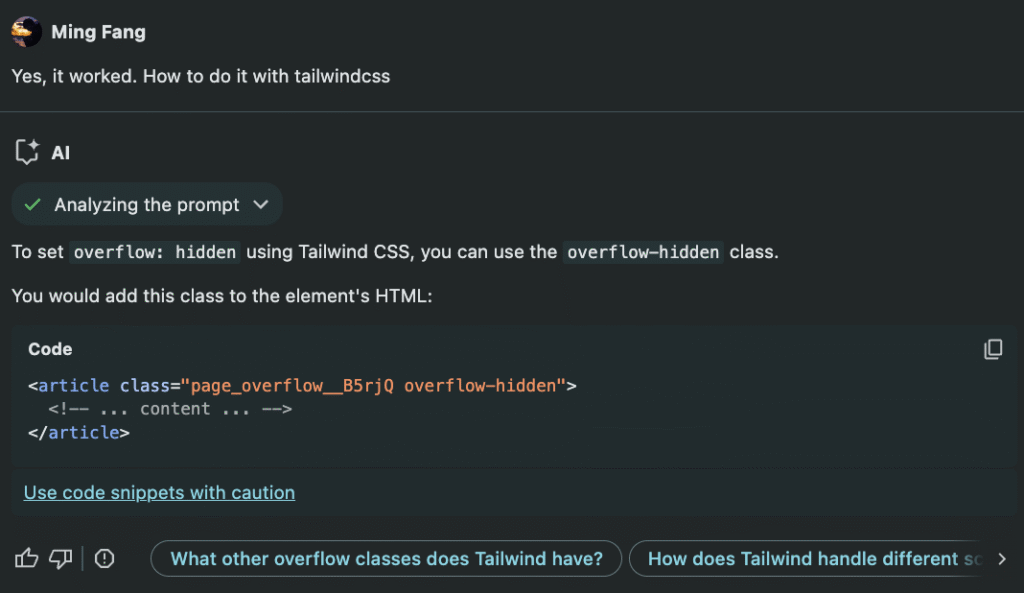
Additionally, you can ask about how to fix with popular libraries such as Tailwind CSS.
Bonus: Try Console Insights for Errors
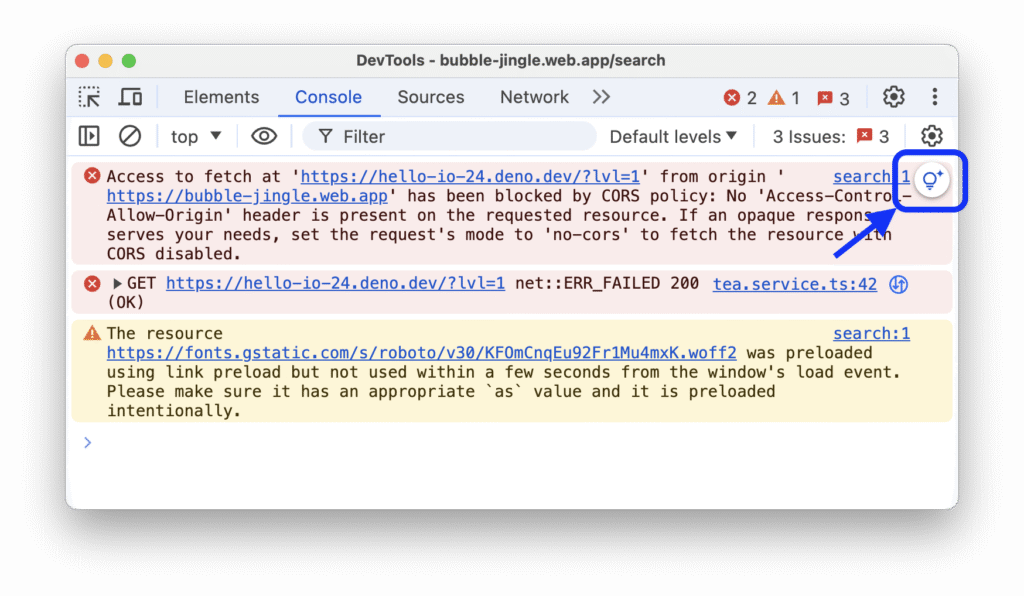
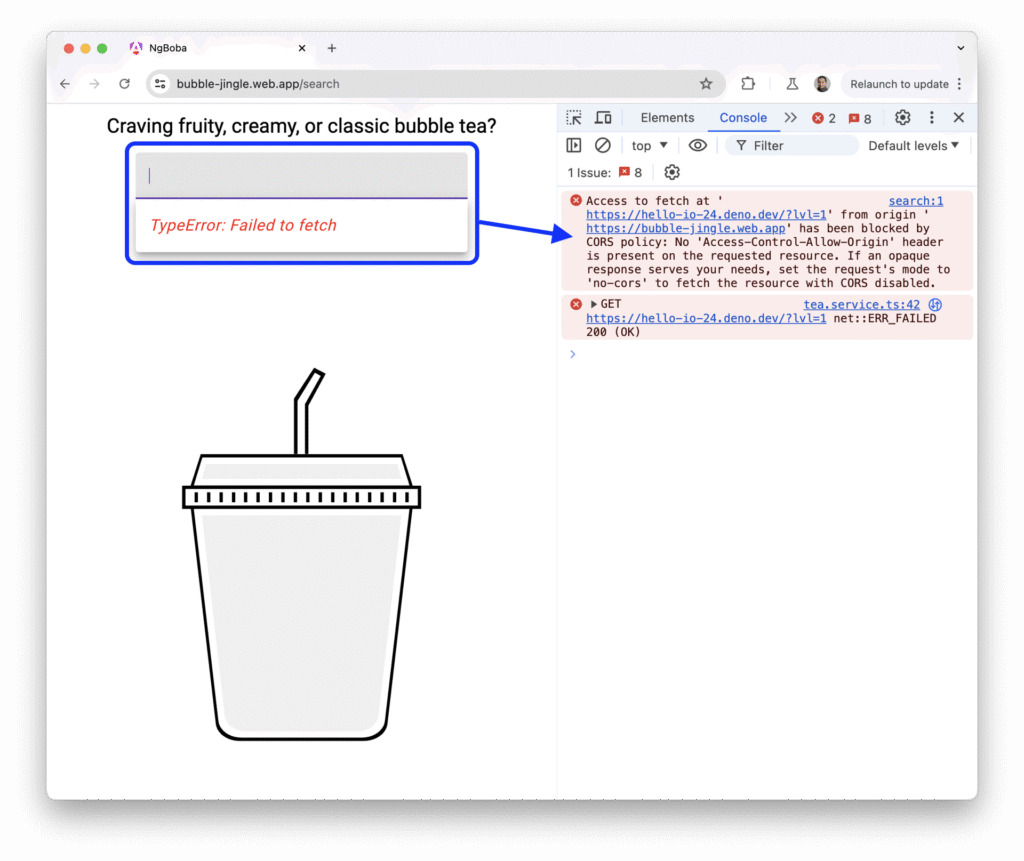
For JavaScript or network issues, check out Console Insights (a separate AI feature from the CSS debugger above):
- In the Console tab, hover over an error and click "Understand this error"
- The AI explains the issue and offers fixes
- Enable it in Settings > AI Innovations (separate from the AI Assistance toggle in Step 2)
In a word…
With Chrome's AI DevTools, frontend debugging is faster and friendlier than ever. In five simple steps, you've fixed an overflow bug. Try it on the Cinemai DevTools Overflow Demo or your own project.
Resources:
Drop a comment if you need anything and keep coding!
Frequently Asked Questions
What can I actually ask Chrome DevTools AI — what are the best use cases? The most useful questions are specific and diagnostic: "Why is this network request failing?", "What's causing this layout shift?", "Explain this JavaScript error and how to fix it", "Why is this CSS property not applying?". The AI has full context of your page's DOM, computed styles, network requests, and console — use that context in your questions for best results.
How do I enable Chrome DevTools AI assistance? In Chrome DevTools, click the gear icon (Settings) → Experiments tab → enable "Enable AI assistance". You need to be signed in to a Google account. The AI panel will then appear as a tab in DevTools. It's powered by Gemini and available in modern Chrome versions.
Is Chrome DevTools AI assistance free? Yes, Chrome DevTools AI assistance is free and built directly into Chrome. No API key or subscription is required. It uses your Google account for authentication.
Can Chrome DevTools AI fix CSS bugs automatically? It suggests fixes and explains what's causing them, but it doesn't auto-apply changes. You review the AI's suggestion and apply it manually in the Styles panel. This keeps you in control while significantly speeding up the debugging cycle — especially for tricky cascade and specificity issues.
What's the difference between Chrome DevTools AI and GitHub Copilot for frontend? Copilot assists while you write code in your editor; Chrome DevTools AI assists while you debug in the browser. They're complementary. DevTools AI is unique because it has direct access to live DOM state, network requests, console errors, and computed styles — context that a code editor simply doesn't have.
Are there privacy concerns with Chrome DevTools AI? When you use AI assistance, selected page content and DevTools data is sent to Google's servers. For sensitive internal tools or apps with confidential data, review your privacy requirements before enabling it in production debugging sessions.
Want to work together?
I'm always happy to connect — whether it's a project, a question, or just to say hi.
Get in Touch →